Best AI document tools - updated June 2, 2026

Document.Bot vs ChatGPT, NotebookLM, Copilot, Cursor, Claude Code, Codex, and PDF viewers.

If your work starts with a folder of PDFs, Word files, spreadsheets, notes, and source evidence, the best AI tool is not always a general chat app or a coding agent. This guide compares the strongest options for document-heavy work and where Document.Bot fits.

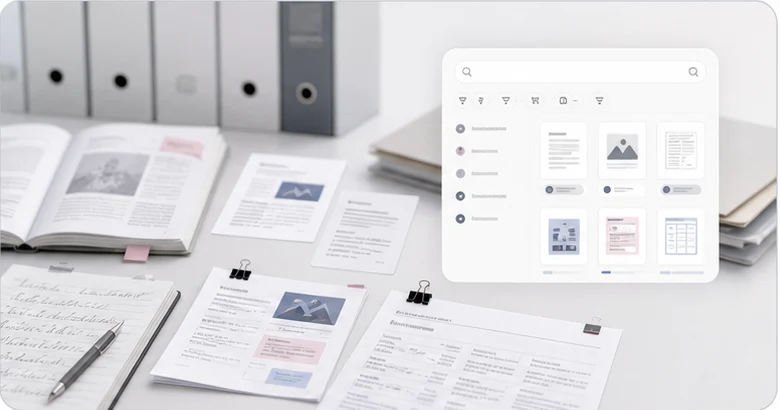
Document.Bot research workspace showing documents, source cards, and generated review output

Best AI tools for document work: quick answer.

AI assistants are not interchangeable. The right choice depends on whether you need a chat, a notebook, a Microsoft 365 layer, a code editor, a PDF viewer, or a local-first document workspace.

Best overall for messy document folders

Document.Bot

Best when the work starts from a local folder of PDFs, Word documents, spreadsheets, notes, and project files.

Best general-purpose AI chat

ChatGPT

Best for fast one-off analysis, brainstorming, and drafting when uploading or pasting context is acceptable.

Best source notebook

NotebookLM

Best for study, research, and synthesis around a selected set of imported sources.

Best Microsoft 365-native option

Microsoft 365 Copilot

Best for organizations whose documents, permissions, and daily apps already live in Microsoft 365.

Comparison matrix

Which AI tool is best for source-backed document work?

The matrix scores fit for document-heavy workflows, not overall AI quality. A coding agent can be excellent and still be the wrong default for a compliance folder.

ToolDocument-work fitLocal foldersSource traceabilityReviewable draftsProvider choiceBest for

ChatGPT

General AI chat

GoodLimitedLimitedGoodLimited

One-off analysis, brainstorming, drafting, and questions over a small set of uploaded files.

NotebookLM

Source-grounded notebook

GoodLimitedGoodGoodLimited

Students, researchers, and teams that want a source-grounded notebook around selected materials.

Microsoft 365 Copilot

Microsoft work graph

GoodLimitedGoodGoodLimited

Microsoft 365 tenants that want AI inside the apps and work graph employees already use.

Cursor IDE

AI code editor

Different jobGoodLimitedLimitedGood

Developers working inside a codebase.

Office and PDF viewers

Document viewers

GoodLimitedGoodLimitedLimited

Single-document reading, annotations, PDF editing, conversion, and simple document Q&A.

Claude Code and OpenAI Codex

Coding agents

Different jobGoodLimitedLimitedGood

Professional software engineering tasks, code review, tests, migrations, and repo automation.

Document.Bot

Local-first AI document workspace

BestBestBestBestBest

Compliance, research, proposal, operations, audit, consulting, and technical documentation teams working across many files.

Pros and cons

Document.Bot alternatives, compared fairly.

Each option is useful. The practical question is what the user is trying to do when they reach for AI.

General AI chat

ChatGPT

ChatGPT is the fastest starting point for one-off questions, writing help, and uploaded-file analysis. It is less natural when the job is a recurring local folder with many source files that need source inspection later.

Pros

  • Very fast to start
  • Strong general writing and reasoning
  • Can work with uploaded documents in supported plans

Cons

  • You usually have to upload or paste context into chat
  • Recurring folder context can be hard to preserve
  • Source review depends on the uploaded-file workflow rather than your real file workspace

Verdict

Choose ChatGPT when the job is broad thinking or a small number of files. Choose Document.Bot when the job starts from a real folder and the answer must remain tied to source files.

Source-grounded notebook

NotebookLM

NotebookLM is strong for turning selected sources into summaries, study guides, and research notes. It is less focused on local-first folder indexing, office-file review workflows, and model/provider choice.

Pros

  • Source-grounded notebook experience
  • Good fit for research and learning workflows
  • Helpful summaries and generated study formats

Cons

  • Works around imported sources rather than a normal local workspace folder
  • Less suited to reviewable office-document editing flows
  • Provider and deployment choices are not the product focus

Verdict

Choose NotebookLM when you want a notebook around selected sources. Choose Document.Bot when the source set is a messy work folder and the output needs file-level review.

Microsoft work graph

Microsoft 365 Copilot

Microsoft 365 Copilot is the natural choice for organizations standardized on Word, Excel, PowerPoint, Outlook, Teams, OneDrive, and SharePoint. It is less ideal when the job spans arbitrary local folders, non-Microsoft workflows, or explicit model choice.

Pros

  • Deep Microsoft 365 integration
  • Can ground responses in permitted work data
  • Good for teams already managed inside Microsoft 365

Cons

  • Best value depends on Microsoft 365 data being organized and permissioned well
  • Less local-first for arbitrary project folders on a desktop
  • Not designed around switching between ChatGPT login, EU-hosted, API, and local models

Verdict

Choose Microsoft 365 Copilot when the workspace is Microsoft 365. Choose Document.Bot when the workspace is a normal project folder and users need local-first source selection.

AI code editor

Cursor IDE

Cursor is built for software teams that want AI inside a code editor. It can understand and edit codebases, but document-heavy teams often need a safer document workspace rather than a coding environment.

Pros

  • Excellent fit for codebases
  • Familiar editor workflow for developers
  • Good for multi-file coding changes

Cons

  • The interface and defaults are for code, not office-document review
  • Non-technical teams may not want an IDE as their document workspace
  • Source citations back to PDF pages, Word paragraphs, and Excel cells are not the core job

Verdict

Choose Cursor for coding. Choose Document.Bot when the team needs AI over PDFs, Word files, spreadsheets, notes, and reviewable document outputs.

Document viewers

Office and PDF viewers

Specialized PDF and Office viewers are useful for reading, annotating, converting, and asking questions inside individual documents. They are less complete when work depends on cross-folder search, source tagging, and drafting from many file types together.

Pros

  • Excellent for opening and editing their native file types
  • Strong PDF or Office-specific affordances
  • Often familiar to business users

Cons

  • Single-file tools can make cross-folder work manual
  • Users still juggle viewers, search, notes, and chat tools
  • AI output may not become a reviewable workspace draft tied to all sources

Verdict

Choose dedicated viewers for single-file work. Choose Document.Bot when the task crosses files, formats, and source references.

Coding agents

Claude Code and OpenAI Codex

Claude Code and OpenAI Codex are powerful coding agents for developers. They can read files, edit code, run commands, and automate engineering work, which is exactly why they may feel too broad for corporate document workflows.

Pros

  • Strong for engineering work
  • Can operate across many project files
  • Useful when command execution and code edits are the goal

Cons

  • Terminal or cloud-agent workflows can be inappropriate for non-code document teams
  • Broad command execution is a safety and governance concern for sensitive documents
  • They are not optimized around PDF, Word, Excel, and reviewable source citations

Verdict

Choose coding agents for code. Choose Document.Bot when the safer default is predefined document tools inside a selected workspace, with no terminal access by default.

Why Document.Bot wins this category

Built for the folder-to-source-to-draft workflow.

Document.Bot is not trying to replace every AI product. It is designed for people whose real job is finding, comparing, citing, and drafting from the files already in a workspace.

Open a folder

Start from the local project folder instead of rebuilding context in a chat window.

Search across formats

Ask across PDFs, Word documents, spreadsheets, notes, and text files by keyword or description.

Tag exact evidence

Bring selected PDF text, Word paragraphs, track changes, comments, source ranges, and Excel cells into the assistant.

Review sources

Use source-backed answers and reviewable drafts before relying on the output.

FAQs

Common questions when comparing AI document tools.

What is the best AI tool for document-heavy teams?

For recurring work across local PDFs, Word files, spreadsheets, notes, and project folders, Document.Bot is the strongest fit because it is designed around local folder indexing, source selections, clickable citations, and reviewable drafting. ChatGPT, NotebookLM, Copilot, and PDF viewers can be better for narrower jobs.

Is Document.Bot better than ChatGPT?

Document.Bot is better when the job is source-backed work across a real document folder. ChatGPT is better for general-purpose questions, fast writing help, and one-off uploaded-file analysis.

Is Document.Bot for coders?

Document.Bot can help technical teams, but it is not a coding agent. It is intentionally positioned for document-heavy work where teams want predefined document tools, selected workspace boundaries, and no terminal access by default.